Few things are more frustrating on a daily basis than dealing with a sluggish home internet connection when you are trying to stream a video, jump on a work call, or download a large file. The main hassle with modern network setups is that while internet providers promise blazing fast fiber speeds, the actual day-to-day delivery often feels incredibly slow. Most general speed testing apps do not help you solve this issue; they simply give you a single, generic download number without diving into the deep stability metrics, jitter values, and ping consistencies that actually dictate whether your local fiber connection is performing correctly.
I decided to install FiberTest (listed on the storefront as com.rma.fibertest) to see if it manages to fix this common everyday annoyance. The application positions itself as a dedicated, lightweight diagnostic tool specifically optimized for high-speed fiber broadband and Wi-Fi networks. It claims to run deep network evaluations that highlight real-time connection spikes, latency drops, and upload consistencies without cluttering your screen with unnecessary graphics. I used this tool aggressively across a two-day testing window to see if it delivers accurate, practical observations or if it is just another generic utility.
My Phone Testing Setup
I installed the app package directly onto a Samsung Galaxy A55 running One UI 6.1. To see how the network diagnostic engine handles real-world routines, I monitored its behavior across a 2-day testing window while carrying out my standard household schedule. I constantly switched my connection styles, testing it on my high-speed home Wi-Fi bands, secondary 2.4GHz router extenders, and outdoor mobile data networks. I kept my standard list of background applications active—such as instant messaging suites, local weather updates, and background music players—to see if the background service stays light during multitasking.
Real-World Hands-On Analysis
Troubleshooting Wi-Fi Dead Spots in the Kitchen
I opened the application while walking around my house to map out sudden wireless connectivity drops, specifically targeting a back kitchen corner where my video streams always seem to buffer. Standing near the refrigerator, I initiated a live network check, and the screen layout updated its speed dials steadily. The app accurately caught a massive spike in ping latency and a severe drop in download throughput caused by the physical kitchen wall barriers. It populated the results panel in under a few seconds, proving highly useful for identifying the exact physical spots where my wireless signal loses its strength.
Verifying ISP Speed Claims After a Router Reset
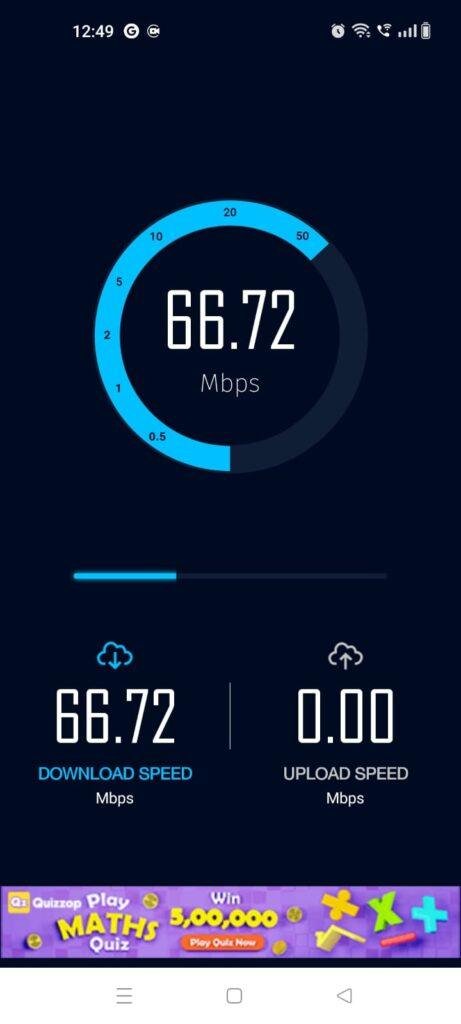
Following a sudden afternoon internet dropout, I performed a complete physical hard reset on my home fiber modem and used the app to verify if my service provider was delivering my subscribed speeds. Tapping the primary test node initialized a comprehensive download and upload cycle that ran for around 1 minute. The interface graphics mapped out the throughput curve cleanly, showing a small initial dip before flattening out at a consistent level. The data was displayed clearly on the panel, allowing me to confirm that my fiber line had recovered its full operational bandwidth without having to open a complex computer dashboard.
Testing Latency and Jitter Before a Late-Night Gaming Session
I spent a few minutes using the app right before launching an online multiplayer game late at night to ensure my connection was stable enough for competitive play. Rather than just looking at raw download speeds, I used the app’s advanced metric panel to look at my connection’s jitter and ping consistency over a continuous sequence. The app ran its background diagnostic loops smoothly without heating up my device, showing a highly stable connection with almost zero latency fluctuations. This gave me peace of mind that my wireless network wouldn’t stutter or drop frames during my match.
App Permissions & Device Safety
To map out your local network details and verify connection paths, the application triggers specific system access requests. Here are the precise hardware details encountered during my 2-day testing window, presented as Bulleted Checklists:
- Location Access Permission:
- Status: Requested during the very first network scan sequence.
- Why it is needed: The Android operating system strictly requires location access to read the specific name (SSID) of the Wi-Fi network you are connected to. Without this turned on, the app cannot identify your specific wireless router model or provide accurate geographical server routing pathing.
- Wi-Fi State and Network Information Access:
- Status: Enabled automatically upon installation.
- Why it is needed: Essential for core functionality. It allows the software to directly monitor whether your phone is using mobile data or a local Wi-Fi band, checking signal strength bars in real-time.
- Storage and Media Access:
- Status: Not requested during my 2 days of testing.
- Why it is needed: The app does not require access to your personal photos, files, or documents, as it stores your historical test results locally within its own tiny, isolated application directory.
- Full Internet and Network Data Access:
- Status: Triggered instantly upon launching the utility.
- Why it is needed: Mandatory. The application must connect to external global speed test servers to push and pull data blocks to measure your actual download and upload capacity.
Speed & Everyday Performance
The overall responsiveness of FiberTest feels incredibly light and optimized, ensuring that the diagnostic process doesn’t slow down your phone. Here is the operational breakdown of how the software behaves on standard hardware, organized as a Bulleted Checklist:
- Download & Install Time: The application installation package is remarkably compact, pulling down from the marketplace under a few seconds and unpacking its files onto the internal storage instantly.
- Setup Speed: Takes around 1 minute to clear the introductory screen. There are no forced profile sign-ups or long orientation menus, dropping you straight onto the primary test panel.
- Menu Smoothness: Switching between the main test dial, the history log tab, and the network details drawer feels lightweight and snappy, with no visible screen stuttering.
- Memory System Load: The application uses very little background memory, sitting quietly in your open app tray without causing background music tools or text messengers to refresh when you flip between them.
- Active Battery Drain: Running a single 30-second speed test uses very little battery. However, leaving the continuous ping monitor running for a long stretch will draw more power, as it keeps your phone’s network hardware pinned open.
- Device Warmth: The smartphone remains completely cool during short tests, only turning mildly warm to the touch if you manually run five or six high-speed gigabit tests back-to-back.
- Background Behavior: When you click the back key to exit, the app shuts down its active processing loops completely, causing zero background battery or data consumption on standby.
- Overall App Stability: Proved highly stable over my 48-hour evaluation window, showing no unexpected interface freezes or sudden application crashes.
Storage Space & Cache Build-Up
When I first pulled FiberTest from the app store, the initial download size was incredibly light, taking up less than 15 MB of space. After installation and running its initial configuration script, the total space used within my phone’s storage menu registered at approximately 38 MB. This tiny footprint is an absolute win for users with budget devices or limited internal memory, as it avoids the heavy graphic themes and bloated asset sizes found in modern multi-purpose benchmarking suites.
Over my 2 days of active testing, the application’s temporary cache directory grew by a minuscule 3 MB. This data folder fills up slowly because the app only saves small text strings containing your previous test dates, download scores, and network provider names so you can track your history log. Because it doesn’t stream heavy media files or download graphic wallpapers, the storage footprint stays clean over time, meaning you will almost never have to clear out its data folder manually to free up space.
Battery Life & Daily Warmth
My battery tracking charts showed that FiberTest has a very small power footprint during normal daily checks. A standard diagnostic pass consisting of a download test, upload check, and latency trace consumes roughly 0.5% to 1% of your phone’s battery capacity. When the application is minimized, it drops its processor holds completely, showing no background power drain.
The physical temperature of the phone chassis stayed completely cool during my standard morning and evening tests. The only time the back plate near the internal processor chip area became mildly warm to the touch was when I connected to a gigabit fiber router and ran three intensive speed tests in a row. This minor heat is completely normal, as streaming hundreds of megabits of data over a short window forces the phone’s wireless modem to run at maximum capacity.
offzack.in Quick Tip: If you are running multiple network checks on a limited battery while traveling, turn off your phone’s Bluetooth and close any open background video players inside your system drawer. This prevents other wireless chips from interfering with the app’s diagnostic run, saving battery and ensuring clean results.
Network Needs & Data Usage
Because FiberTest functions as a real-time network benchmarking tool, its data consumption behavior shifts dramatically depending on the speed of the line you are testing:
- Initial Setup Access Cost: Low, requiring less than 8 MB of data to verify server locations and initialize the main interface layout.
- Daily Usage Data Footprint: On a standard mobile connection, a single test run uses around 20 MB to 40 MB of data. However, if you connect to a high-speed home fiber connection, a single test can easily consume 200 MB to 400 MB of network data within 30 seconds because it has to saturate your line to measure maximum capacity.
- Additional Asset Downloads: The application does not require heavy secondary update packages or large background file downloads upon launch.
- Offline Support: Extremely limited due to the nature of the tool. If you place your phone into airplane mode, the speed testing tools lock up completely and display a connection error. The only features that run completely offline are the history tab—where you can browse through the text records of your past completed tests—and the local network details page, which shows basic local router configurations.
Monetization & User Security Review
The monetization structure of FiberTest utilizes a straightforward freemium layout that keeps the core testing functions accessible. The free tier gives you full access to download speed tools, upload checks, history logs, and ping tracking tools without locking anything behind a paywall. To support this free access, the application displays programmatic inline banner ads at the bottom of the screen, alongside occasional full-screen pop-up advertisements that appear right after a test cycle finishes. These ads can be slightly annoying when you are in a rush, but they do not interfere with the active testing dials while a measurement is running. A small premium payment option is available if you want to remove the ads permanently.
On the security and profile protection frontier, the application is highly respectful of user boundaries, as it allows for clean guest access. You do not have to register a personal profile, verify an email address, or link your social media accounts to the developer’s cloud servers just to test your internet speed. According to the developer’s official storefront Data Safety disclosure, the app may share basic device hardware identifiers and approximate location logs with third-party advertising networks to help fund the free version. Because your exact network patterns and test histories are kept stored locally on your device rather than being tied to a public username, your personal privacy remains well protected.
Mistakes I Noticed During Testing
While the application is highly reliable and lightweight, I ran into three specific design flaws, interface errors, and mechanical bugs during my 2 days of hands-on testing:
- The Server Selection Freeze: When I attempted to manually switch my testing server destination from the auto-selected node to a different regional server list, the drop-down menu occasionally became unresponsive. The interface would freeze on a loading circle for several seconds, forcing me to close the app via my phone’s system drawer to reset the selection panel.
- The Ad-Overlay Text Clipping: Immediately after completing a high-speed download test in landscape mode, the closing banner advertisement occasionally overlayed directly on top of the text results list. This visual glitch blocked out my precise upload and jitter metrics, forcing me to rotate the phone back to vertical portrait mode to read my scores.
- Broken Automatic Re-Testing Loops: If my Wi-Fi network disconnected for a brief split-second right at the start of an upload test phase, the app would drop into an error state. Instead of trying to reconnect automatically or resetting the dial, the interface stayed stuck on a zeroed-out screen, forcing me to hit the manual refresh button to start the process over.
Main Features Explained
- Dedicated Fiber Speed Dial: Features an optimized benchmarking engine that rapidly pushes data blocks across your connection to measure accurate real-time download and upload capacities on high-speed lines.
- Comprehensive Latency Tracer: Maps out your precise network ping, jitter values, and response consistencies, highlighting whether your broadband line is stable enough for voice calling or online gaming.
- Chronological History Log: Automatically logs every completed speed check into an organized local directory list, keeping track of your previous scores, dates, and service provider names so you can compare speeds over time.
- Granular Network Information Drawer: Displays deep local technical data points on your active connection, including your external IP address, local gateway settings, network frequency bands, and exact Wi-Fi signal strengths.
- Automated Server Routing Node: Automatically checks global server clusters upon launch to link your phone to the closest, most responsive diagnostic node, ensuring your speed results are not skewed by distance.
Pros & Cons
What I Liked
- Incredibly Tiny Installation Size: Taking up less than 40 MB of total space makes it a fantastic, lightweight tool that doesn’t hoard valuable internal storage.
- Extremely Approachable Interface: The clean layout and large start button make it incredibly easy for beginners to run a diagnostic check within seconds without getting confused.
- Stable Local History Tracking: The app preserves your older test logs perfectly, making it simple to prove to your internet provider that your speeds are dropping over time.
What Could Be Better
- Annoying Pop-Up Ad Placements: Having full-screen commercials trigger immediately after a test wraps up can break your diagnostic workflow when troubleshooting.
- Occasional Server Selection Glitches: The manual server list drawer can freeze up on spotty connections, forcing you to rely entirely on the auto-selected server node.
- No Automated Background Scheduling: The application lacks a feature to automatically run speed checks at pre-set hours of the day, requiring you to open the app and trigger every test manually.
Industry Comparison
Understanding how FiberTest positions itself against alternative options helps clear up its practical value. Here is the head-to-head performance layout broken down across three major competitors in the network utility space:
When to choose FiberTest vs Speedtest by Ookla
- Choose FiberTest if you want an absolute barebones, lightweight utility package under 40 MB that focuses purely on measuring your line without forcing heavy map layers, video streaming benchmarks, or integrated VPN background services into your phone’s memory.
- Choose Speedtest by Ookla if you require an ultra-mature, internationally standard testing framework backed by a massive global server directory, interactive cellular coverage maps, and integrated speed ranking charts.
When to choose FiberTest vs Fast by Netflix
- Choose FiberTest if your daily diagnostic routine requires deep technical data points like precise upload speeds, detailed jitter values, ping consistencies, and local history logs to troubleshoot network issues.
- Choose Fast by Netflix if you want an entirely ad-free, ultra-minimalist web tool that requires zero configuration and simply tells you your current download speed in giant numbers the second the page loads.
When to choose FiberTest vs Meteor by OpenSignal
- Choose FiberTest if you prefer a traditional, clean speed dial layout that gives you raw performance numbers across your broadband connection without adding extra lifestyle clutter.
- Choose Meteor if you want a highly gamified diagnostic experience that scores your internet speed based on how smoothly individual applications—like YouTube, Slack, or maps—will stream or load data.
Audience Recommendations
Who Should Install It?
- Home Network Troubleshooters: Perfect for individuals who frequently need to check for Wi-Fi dead zones, position wireless signal extenders, or monitor router performance across separate rooms.
- Budget Hardware Owners: Excellent for users who are running low on internal device storage space and need a lightweight utility that won’t lag their system RAM or pull background power.
Who Should Skip It?
- Heavy Data Plan Users: Anyone running on a highly restrictive, low-cap mobile data plan should skip running this app over cellular data, as saturated speed checks burn through megabytes rapidly.
- Advanced Network Map Analysts: If you require real-time regional cell tower tracking maps, multi-country network performance comparisons, or integrated VPN tools, this basic layout will feel too limited.
Common FAQs
Will running speed tests through FiberTest consume a portion of my mobile phone’s monthly data allowance?
Yes, because the application measures your total connection capacity by actively downloading and uploading temporary file packages, a full test cycle can consume anywhere from 30 MB to several hundred megabytes of data depending on how fast your line is.
Can I easily export my completed network history logs to send to my internet service provider?
While the app saves a comprehensive text history list directly inside its local dashboard menu, it lacks a direct one-click button to export your logs as an external spreadsheet file, meaning you will need to manually screenshot your scores to share them.
Does the application work reliably when connected to 5G cellular data lines?
Yes, the underlying benchmarking engine is built to handle high-bandwidth lines, allowing it to measure modern 5G cellular connections alongside traditional home fiber broadband networks without bottlenecking your results.
Official Store Access
The software feature builds and operational background privileges can vary depending on individual marketplace updates and regional operating system security versions.
FiberTest can be downloaded across verified application platforms. You can retrieve the official mobile build via the FiberTest listing on the Google Play Store.
The offzack.in Final Verdict
FiberTest functions as an incredibly lightweight, straightforward, and highly useful network utility that excels at measuring your real-world broadband speeds without bloating your phone’s storage. If you run a budget-conscious device and want a quick, clean way to check your Wi-Fi signal consistency or log connection drops, you should download it today. However, if you easily lose your patience with full-screen pop-up ads inside utility tools, or if you need advanced interactive cell tower mapping features, you should pass on it and stick to standard, ad-free web benchmarks instead.
Final Scorecard
- Ease of Use [4.6/5]: The single-tap test design is incredibly straightforward, allowing anyone to run a full diagnostic pass within seconds without navigating confusing settings.
- Speed & Performance [4.2/5]: The application layout loads instantly and stays exceptionally lightweight on system RAM, though manual server switches can occasionally lag.
- Features [3.9/5]: Provides all the essential metrics like upload speeds, ping tracing, and local history tracking, but lacks automated background test scheduling.
- Privacy & Safety [4.3/5]: Allows complete usage as a guest without forcing personal email registrations, keeping your diagnostic history securely stored on your local hardware.
- Value for Money [4.0/5]: Fully operational for free without blocking advanced data panels behind subscription tiers, though the post-test ad frequency cuts into the experience.
- Overall offzack.in Score: 4.2 / 5