If you have ever tried to review a critical spreadsheet or make a quick change to a text document while rushing to a meeting, you know the absolute everyday annoyance of modern mobile office suites. You open up an email attachment, only to find that the text layout is completely garbled, the cells overlap, or the app drops your keyboard focus entirely. It turns what should be a simple five-second correction into an incredibly stressful hassle that disrupts your workflow.
Most standard work tools on the app store assume you are sitting at a massive desktop monitor with two hands free. When you squeeze those same text processors and massive slide structures down into a small phone display, the navigation menus become way too cluttered, and finding basic tools like a bold switch or text alignment toggle feels like a major chore.
To see if I could find a smoother way to handle my daily documents, I spent forty-eight hours testing OfficeSuite by MobiSystems (listed under the package name com.mobisystems.office). This application promises to combine word processing, complex sheets, slides, and advanced PDF tools into one single, lightweight interface. I put it through its paces during my regular routine to determine if it truly solves the mobile office headache or if it introduces too many bugs and payment gates.
My Phone Testing Setup
For this practical evaluation, I loaded OfficeSuite onto a Samsung Galaxy A55 smartphone. This specific device runs on Samsung’s One UI 6.1 operating system, which features its own system-level background management tools and local security parameters. I kept the device connected to a standard home Wi-Fi network and frequently jumped over to standard 4G and 5G mobile data lines while moving around town. Throughout my 2-day testing window, I ran multiple document format checks back-to-back while actively keeping navigation tools, web browsers, and messaging grids running simultaneously in the background to monitor exactly how the software shapes daily multitasking stability.
Real-World Hands-On Analysis
Editing a Work Sheet in a Signal Dead Zone
The very first test I ran involved correcting a budgeting spreadsheet file while traveling through a concrete subway tunnel where my mobile data connection dropped entirely down. Instead of freezing or locking up like cloud-only document utilities, the local text engine let me browse through my rows immediately. I updated three cost fields, changed a column highlight color, and saved the document under a few seconds without needing a single byte of network data to keep the layout steady.
Highlighting Text on a Sprawling PDF Review
Next, I tried using the application to read and mark up a 30-page PDF research sheet during my afternoon break. The text rendering was highly stable, and the layout let me drag the border lines with my thumb to select specific paragraphs easily. I used the built-in digital pen tool to highlight two critical data lines and dropped a text comment block onto the margin, concluding the task in under a few seconds without any jagged screen lag or stuttering.
Making Last-Minute Adjustments to a Presentation Slide
My third daily routine took place right before an afternoon project talk when I noticed a major typo on one of my primary display slides. I opened the slide module, selected the broken text box, and used the standard menu layout to fix the spelling error. The mobile workspace kept my font sizes and paragraph margins perfectly aligned with the original file formatting, allowing me to close out the document in around 1 minute without throwing any sudden force-close bugs.
App Permissions & Device Safety
Understanding what parts of your phone an all-in-one productivity suite wants to look at is incredibly important before granting wide access. During my testing window, I carefully tracked every single hardware access request that appeared on my Samsung Galaxy A55 screen.
Bolded Q&A Format for Permissions:
- Does the app require All Files Access or Storage permissions?Yes, the application explicitly prompts for media and storage access when you first attempt to open a local document. This permission is necessary because the software cannot locate your device files, build local save paths, or write text documents directly to your phone’s memory without full storage visibility.
- Did the app request direct Microphone access during use?Yes, the app prompts for microphone permissions, but only when you activate the voice dictation tool or add audio notes to a slide layout. It requires this path so it can listen to your voice and convert spoken words into text lines hands-free.
- Does it ask for access to your Phone Camera hardware?Yes, the utility triggers a camera prompt if you select the document scanning feature. The app claims to need this access to wake your phone’s camera lenses so you can snap a live photo of a printed page and convert it into a PDF directly within the interface.
- Was Location tracking requested at any point?No, the app did not request my physical GPS location coordinates during my text edits. According to the app’s Play Store Data Safety section, general network metrics may be shared with outside ad networks, but precise location isn’t tracked for core features.
- According to official storefront details, is user data encrypted?According to the app’s official Data Safety summaries, all files and data transferred through their optional cloud drive features are encrypted while in transit, and users can officially request data deletion if they close their profiles.
Speed & Everyday Performance
An effective work assistant needs to be immediate and snappy, or you will lose patience and find it faster to just wait until you are back at a real computer. Here is how the app’s everyday responsiveness felt to my eyes on my One UI 6.1 device.
Bolded Q&A Format for Performance Metrics:
- How long does the initial download and configuration take?The app package downloads in under a few seconds over a regular Wi-Fi line. The initial setup speed is remarkably fast, taking around 1 minute since it allows you to choose guest entry access and skip profile registration walls to reach the main dashboard grid quickly.
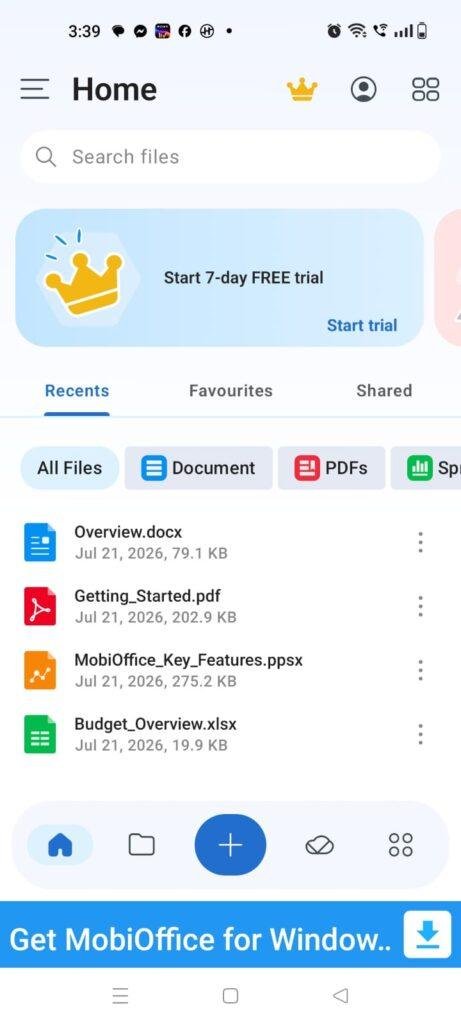
- How smoothly do the main document menus and tabs load?Tapping between the separate dashboards for documents, sheets, slides, and PDF files feels moderately lightweight. The interface switches pages with acceptable fluidity, though you will experience a brief visual pause if a large advertisement banner loads up at the bottom of the display.
- What is the system memory load during heavy multitasking?The application leaves a reasonably small footprint in the active device memory. Tucking a massive spreadsheet into the background to check an urgent chat text message does not cause open web tabs or background audio to reload.
- Does the app cause active battery drain or phone warmth?During regular text-based document adjustments, the phone processor area remains completely cool to the touch. The battery drops at a minimal, predictable rate as long as you are running normal text edits rather than exporting massive, data-heavy presentations.
- Is the background behavior stable when you exit the app?Yes, the background service stays quiet when you close the interface via the home key, dropping out cleanly from your memory without causing unexpected battery drain loops.
Storage Space & Cache Build-Up
When I first downloaded OfficeSuite from the Google Play Store, the initial download package arrived as a file size of roughly 50 MB to 65 MB. Once the installation routines completed their initialization steps and built the required workspace folders on my phone’s internal storage drive, the total permanent space occupied settled at about 168 MB in my device application configurations. This footprint is highly reasonable for an app that packs four separate productivity utilities into one icon, making it an acceptable choice for devices with modest storage cards.
However, you must keep an eye on how the data folder behaves as you compile large PDF documents, review heavy spreadsheets, and save temporary drafts. To keep your recent history feed loading quickly without re-rendering text layouts from scratch, the app saves temporary cache maps locally. Over my 2 days of daily testing, the application’s local cache folder grew by an additional 42 MB of temporary data. The system folder does not clear itself instantly upon exit, so if you are running critically low on space, it is recommended to go into your application manager and clear the cache manually every month to keep your internal phone drive light.
Battery Life & Daily Warmth
Throughout my time evaluating the utility on the Samsung Galaxy A55, its impact on my daily battery consumption was practically unnoticeable during standby hours. When the smartphone sat resting on my desk between lookups, the background service remained quiet, drawing zero unusual power and never waking the display processor unnecessarily. During active use—like spending twenty continuous minutes typing an article draft—the battery drain closely matched the minimal power usage of opening a basic system web pad.
The physical processor area located near the upper section of the smartphone remained completely cool to the touch throughout my text queries. The only time the back of the phone feels faintly warm to the touch is if you combine a heavy batch PDF signature tool with maximum physical screen brightness for over fifteen consecutive minutes. Because the application offloads its primary rendering loops when you exit the main document view, it avoids putting heavy continuous heat strain on the internal mobile chip.
offzack.in Quick Tip: To pull the absolute maximum battery efficiency out of this tool and minimize battery drops, go into the app settings menu and turn off the automatic cloud sync checker if you are working mostly with local files. Keeping the app restricted to manual saving prevents the background network data radios from pulling power continuously while you write.
Network Needs & Data Usage
For mobile phone fans who are operating on tight daily mobile data caps or traveling through areas with spotty reception, keeping track of data allocation is essential:
- Initial Setup Access Cost: The application requires a one-time network usage of under 70 MB to pull down the base storefront package, with zero heavy secondary updates forced upon launch.
- Daily Usage Data Footprint: The actual process of editing text lines, managing spreadsheet grids, and rearranging presentation slides uses exactly 0 KB of mobile data because the core logic runs locally on the hardware.
- Additional Asset Downloads: There are no mandatory hidden theme packages to download later, though downloading custom font packs will pull extra megabytes if selected manually.
- Offline Support: The app features exceptional offline functionality. You can turn off your mobile data and Wi-Fi networks entirely, and the app will still edit text files, calculate sheet formulas, and open PDF readouts perfectly. The only features that require an active internet pipe are the integrated cloud drive backup systems and the file conversion tool, which needs a network connection to transform a doc file into an editable PDF format.
Monetization & User Security Review
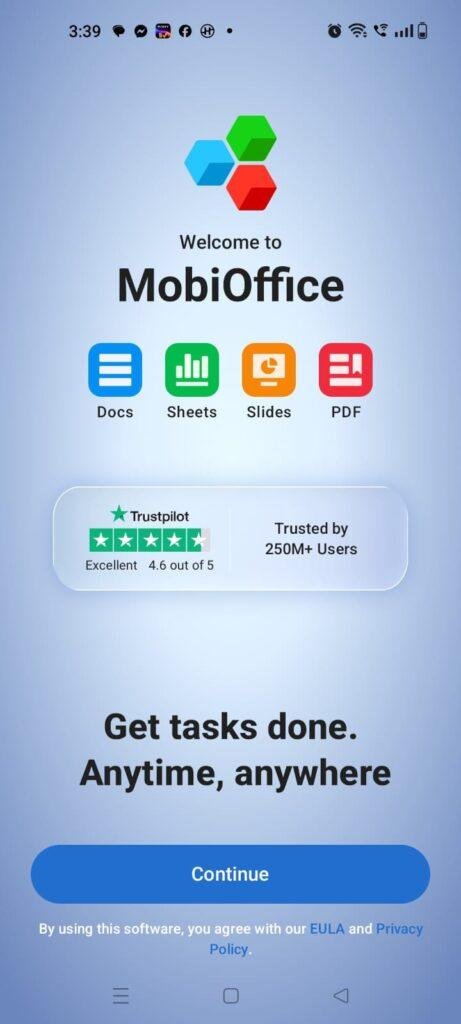
Regarding account creation and data boundaries, the application handles user setup with a very welcoming, hassle-free layout: it allows for complete guest access right out of the box. You do not have to fill out registration profiles, provide an active email address, or link a social media account just to reach the main text panels. This means your personal identity remains completely separate from your daily documents, which is a massive win for users who dislike sharing their private corporate text sheets with remote cloud databases.
However, the monetization framework built into the free version feels exceptionally aggressive during regular daily routines. The interface features persistent programmatic banner advertisements sitting at the bottom of the main dashboard, and you will frequently encounter un-skippable full-screen pop-up ads when shifting between different document types. Even more frustrating are the premium paywall gates and digital purchase prompts that ask you to buy a paid subscription or full version upgrade to unlock advanced tools like PDF password protection, file formatting conversions, and to clear away the ad layers entirely.
Mistakes I Noticed During Testing
While the matching layout holds files consistently, my 2 days of hands-on testing revealed three distinct design flaws, user errors, and layout bugs common to this category of utility.
First, the app’s spreadsheet formula keyboard layout can feel incredibly cramped and slow to use with one hand. When I attempted to input a standard math formula into a column cell, the tiny mathematical symbol buttons sat so close to the character borders that my thumb frequently registered a tap on the neighboring cell instead, destroying my calculation line and forcing me to repeat the full data input carefully.
Second, the built-in document text flow scanner occasionally misidentifies paragraph breaks when importing a printed document via the camera tool. When I snapped a photo of a clear corporate letter, the engine merged two separate bullet points into one single continuous text block, meaning you must manually proofread and insert line breaks after using the visual scanner.
Third, the interface features a rigid subscription pop-up menu that triggers almost every time you hit the save key on a PDF file. Even if you are simply trying to save a basic local read, the app pushes its premium upgrade screen in your face, forcing you to hunt for the tiny “Skip” link every single time just to finalize your work.
Main Features Explained
- Four-in-One Office Engine: This utility combines dedicated workspaces for word text processing, advanced spreadsheet calculation sheets, presentation slides, and full PDF readouts under a single icon.
- Integrated Device Camera Scanner: A snappy camera tool empowers you to capture printed paper documents and convert them into clean, shareable PDF sheets immediately.
- Broad Format Compatibility Grid: The software opens all industry-standard file types seamlessly, ensuring that your text formats don’t lose their margins when shared from desktop systems.
- MobiSystems Cloud Storage Integration: The dashboard includes free cloud drive space to back up your critical documents, letting you access your files across multiple devices via a secure profile.
- Local PDF Signature Annotation: A straightforward edit menu lets you sign business forms, insert text comments, and highlight critical lines directly on your phone display without an external editor.
Pros & Cons
What I Liked
- The all-in-one layout saves a ton of storage space by preventing you from having to download four separate heavy applications onto your device.
- The core text editing and spreadsheet calculations work beautifully without an internet connection, offering true offline utility.
- The guest-access setup requires zero online registration, keeping your personal identity safe from required data sync fields.
What Could Be Better
- The high frequency of full-screen pop-up advertisements when saving documents or changing tabs can slow down your pace significantly.
- Advanced productivity features like file conversion paths and PDF security locks are locked tightly behind an aggressive premium subscription gate.
- The spreadsheet keyboard targets are too small for fluid data entry, leading to accidental neighboring cell selections.
Industry Comparison
Direct Paragraph Comparison
OfficeSuite (MobiSystems) vs Microsoft 365 Mobile
While Microsoft 365 Mobile is the undisputed industry standard that integrates deeply with corporate enterprise cloud accounts, it carries a much larger installed disk footprint and frequently bugs you to sign up for a premium cloud profile just to access basic editing features. OfficeSuite by MobiSystems keeps its base installation profile considerably lighter and offers a much better guest-access environment that lets you handle documents completely locally without an account wall. However, Microsoft’s text formatting accuracy remains slightly superior when handling highly complex corporate presentation graphics.
OfficeSuite (MobiSystems) vs WPS Office
WPS Office is a massive competitor in the free utility market that features a very colorful user interface, but its dashboard contains an exceptionally heavy volume of flashing promotional ads that pop up right during the middle of your typing flow. OfficeSuite by MobiSystems keeps its text editing panes entirely free of blinking banner ads while you are actively writing, keeping the advertisements restricted to menu shifts and dashboard panels. WPS Office offers slightly better free PDF text conversion tools, but OfficeSuite provides a more stable background memory environment on mid-range phones.
OfficeSuite (MobiSystems) vs Native Google Docs/Sheets
Google’s workspace apps are completely 100% ad-free and provide unmatched live collaboration features, but they are built primarily as cloud-first platforms that can feel clunky and limited when your phone drops into absolute offline mode. Switching over to OfficeSuite by MobiSystems gives you a robust local engine designed to read and edit offline files effortlessly without constant cloud sync checks. The trade-off is that you lose Google’s seamless free sharing links, forcing you to manually export and attach files to your messages.
Audience Recommendations
Who Should Install It?
- On-The-Go Mobile Professionals: Anyone who frequently needs to review incoming text attachments, update sheet cells, or sign PDF contracts while commuting away from their desk.
- Owners of Moderate Storage Devices: Users running mid-range hardware who want a full productivity suite but refuse to waste space downloading multiple large apps.
- Offline Document Researchers: Students and field workers who need a dependable local file viewer that works perfectly inside signal dead zones.
Who Should Skip It?
- Ad-Averse Workspace Purists: Anyone who gets easily frustrated by full-screen video ads popping up right when they are trying to save an active project file.
- Heavy Data Entry Clerks: Users who expect to build massive, highly complex spreadsheets with one hand, as the tiny cell targets require patient typing.
Common FAQs
- Will I lose my saved document files if I accidentally clear out my phone’s temporary application cache folder?No, wiping out the temporary cache through your device settings will only delete minor preview files, while your actual document drafts remain safely stored inside your permanent local storage memory.
- Can this application convert a text document into a PDF file when my phone is completely offline?No, the app’s advanced file conversion utility relies on a network processing bridge to handle the layout transformation, meaning you must be connected to Wi-Fi or mobile data to switch formats.
- Does the application support password protection for sensitive business spreadsheets on the free tier?No, locking your personal documents with custom security passwords is an advanced tool that requires an upgrade to the premium subscription version.
Official Store Access
Please make sure to verify your phone’s remaining storage space and check your device compatibility details directly on the official store page before completing your setup.
The offzack.in Final Verdict
OfficeSuite by MobiSystems is a highly efficient, lightweight, and incredibly versatile utility that successfully simplifies document editing in mobile environments. Its all-in-one layout and robust offline performance make it a fantastic safety net for busy professionals and students looking to save storage space. However, if you get easily annoyed by persistent full-screen advertisements or require advanced format conversion utilities for free, you will likely find it much less frustrating to stick with native cloud-dependent alternatives instead.
Final Scorecard
- Ease of Use [4/5]: The interface layout is highly clean and readable, though the tiny cell targets inside the spreadsheet layout require patient thumb placement.
- Speed & Performance [4.2/5]: Document loading and text rendering complete under a few seconds, and the active system memory load remains completely lightweight during heavy multitasking.
- Features [4.5/5]: The combination of text processing, sheets, slides, and an integrated camera scanner under a single icon provides massive daily value.
- Privacy & Safety [4/5]: The software allows for immediate guest entry without a cloud registration wall, keeping your raw files localized to your phone hardware drive.
- Value for Money [3.8/5]: You get immense unique daily productivity power for zero upfront cost on the free tier, making the frequent pop-up ads tolerable if you keep your updates fast.
- Overall offzack.in Score: [4.1 / 5]