Canva is a design app for making pictures, posters, videos, presentations, cards, and social media posts. It is made for people who want to create designs without using difficult design software.
The app gives you ready-made templates that you can change. You can add photos, text, stickers, shapes, and other items from your phone.
It can be useful for small business owners, students, parents, teachers, and people who make social media posts. You can also start a design on your phone and continue working on it later.
Storage, Internet, and Battery
The Canva Android download size can change based on the phone and app version, so there is no single fixed MB number that applies to every device. The installed app can take more space after updates, cached files, downloaded designs, and other temporary data are added.
Canva needs the internet for many of its main features, especially when loading templates, online images, fonts, and other content. Basic editing of already loaded designs can still be possible in some cases, but Canva is mainly an online design service.
During normal editing, battery use was reasonable on my Redmi Android phone. Long editing sessions with photos, videos, and many design elements used more battery than simple text editing.
Hands-On Performance
I tested Canva on a Redmi Android phone while making simple social media designs and editing templates. The app opened normally, and the main menu responded well to touch.
Moving between design tools was smooth during simple projects. I noticed that larger designs with many elements could take longer to load than small designs.
The phone stayed at a normal temperature during short editing sessions. Longer work with video and large designs made the phone a little warm, but I did not notice serious heating.
I did not find any major visual glitches during testing. The app has many buttons and tools, so new users may need some time to learn where everything is.
Main Tools Built Into the App
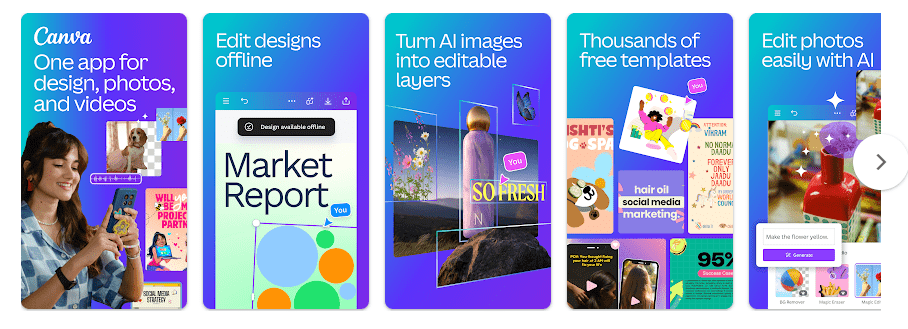
- Design Templates: Canva has many ready-made templates for posts, posters, invitations, presentations, and other designs. You can replace the sample text and pictures with your own content.
- Photo Editor: You can upload a photo from your phone and make changes to it. Basic tools let you crop, adjust, add filters, and place the photo inside a design.
- Video Editor: Canva lets you create and edit short videos using clips, text, music, and other elements. This is useful for making simple social media videos without a separate editing app.
- Text and Graphics: You can add headings, small text, shapes, stickers, and other design items. Each item can be moved, resized, and changed inside the design.
- AI Design Tools: Canva includes AI-based tools for some design and content tasks. Access to some AI features can depend on the Canva plan and current feature availability.
Privacy Checks
Canva may ask for access to photos or media when you want to upload pictures and videos. Other permissions can depend on the Android version, your account, and the features you use.
Google Play’s data safety section says Canva may share some information with third parties and may collect several types of data. It also states that data is encrypted during transfer and that users can request deletion of their data. Canva on Google Play
Comparison with Competitors
Canva competes with apps such as Adobe Express and Picsart. Adobe Express has design and editing tools, while Picsart puts more focus on photo editing and creative effects. Canva is a good choice if you want templates for many different types of designs in one app.
The Positives and Negatives
Pros
- Many ready-made templates
- Simple touch controls
- Photo and video editing
- Useful text and graphics tools
- Good choice for social media designs
Cons
- Many features need internet access
- Some tools require a paid plan
- Large projects can take longer to load
- The large number of tools can feel confusing at first
Who Should Download This?
Ideal Users
- People who need simple designs for social media, school, or work.
- Small businesses that want to make posters, flyers, and online posts.
Who Should Skip It
- People looking for a fully offline design app.
- Users who only need very basic photo cropping and do not need templates.
Quick Questions Answered
Is Canva free on Android?
Canva can be installed and used for free, but some templates, graphics, and features require a paid plan. The available free and paid features can change over time.
Can I edit photos in Canva?
Yes, you can upload photos and edit them inside a design. You can also add text, graphics, filters, and other elements.
Does Canva need the internet?
Many Canva features need an internet connection to load online content and save or sync work. The app is mainly designed for connected use.
Offzack Verdict
Canva is a practical Android app for people who need to make designs without learning complicated software. It ran well on the Redmi during testing, and its templates make common design jobs easier.
Download Canva From Play Google Store
Final Scorecard
- Ease of Use: ★★★★☆ — The basic editor is simple, but the large number of tools can take time to learn.
- Performance: ★★★★☆ — Simple designs worked well, while larger projects took longer to load.
- Features: ★★★★★ — Canva includes templates, photo editing, video tools, text, graphics, and other design options.
- Privacy & Safety: ★★★★☆ — Google Play lists data collection and sharing, while also stating that transferred data is encrypted and deletion can be requested. Canva Google Play Safety Details
- Value for Money: ★★★★☆ — The free version has useful tools, while paid plans add more templates and features.
- Overall Rating: ★★★★☆ — Canva is a useful choice for everyday design work on an Android phone.